Docs›What agents can do for you
Documents, images, videos and voice
Agents in Hydor read PDFs, Word, Excel, PowerPoint and other documents, make new ones for you, and hand them over as cards you open or download; they can also make pictures and short videos (or change yours), songs, voice-overs and sounds, with image, video and audio models, and you can keep what they make in your Library. And you can speak instead of typing, have replies read aloud, or talk to the app hands-free while you walk.
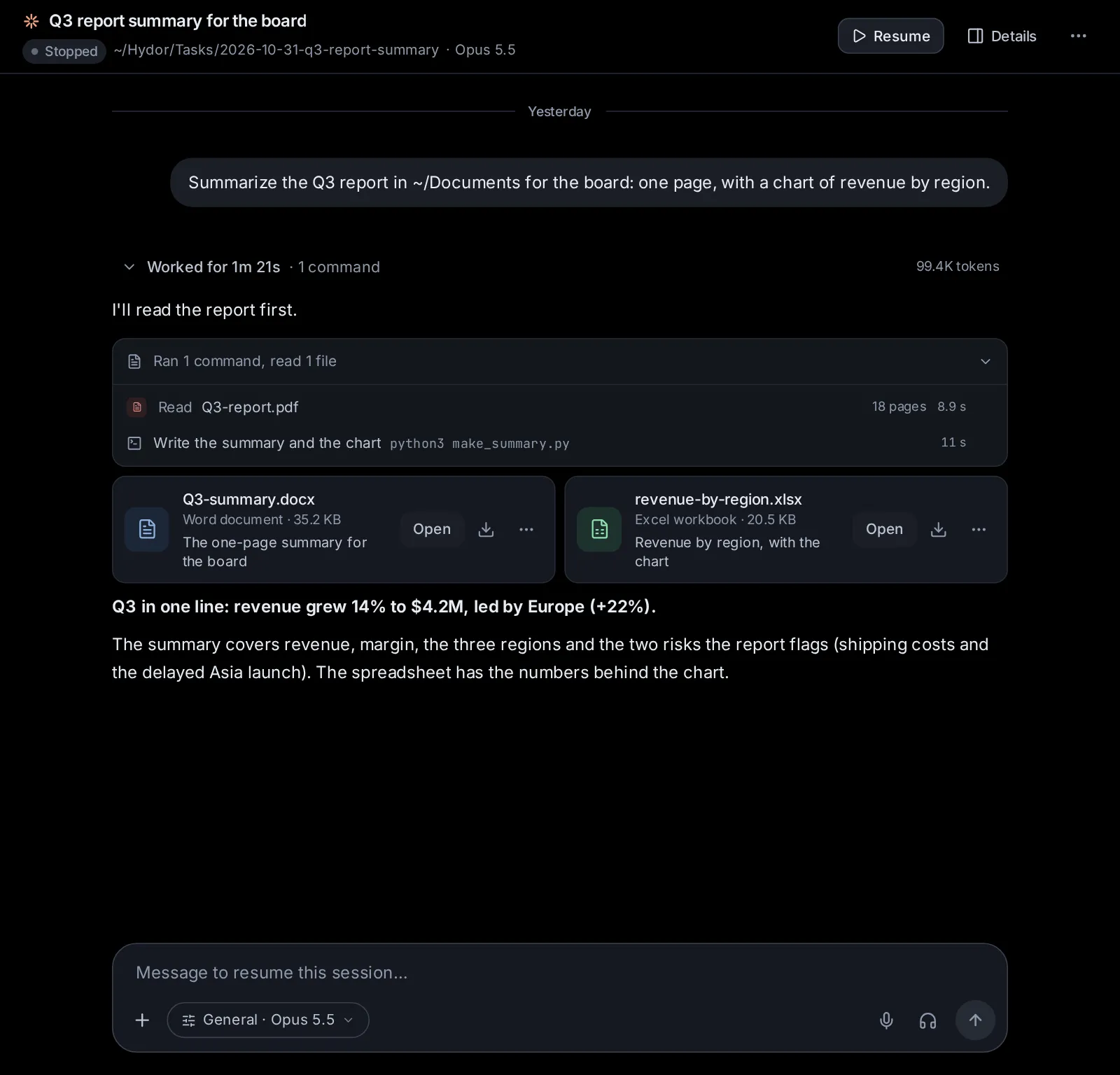
Give an agent a document to read#
Every agent the app runs can read documents: Claude Code, Codex, Custom, and the agents that speak ACP and take MCP servers. You don't need to convert anything first. Give it the document in one of these ways:
- Attach it to your message: the paperclip (Attach files) in the message box, or drag the file onto the box, or paste it. Pictures go to the model as pictures; any other file is saved on the computer that runs Hydor, and its path is added to your message so the agent can open it. One message carries up to 25 MB of files.
- Name a file on this computer: "Summarize ~/Documents/lease.pdf". A path that doesn't start with
/or~starts in the session's folder. - Keep documents in a project or in the shared knowledge, so that sessions can search them and cite the page: see Projects and knowledge.
While the agent reads, its work shows Reading lease.pdf, then Read lease.pdf. On a wider screen the line also says what the document is (the kind, its pages, sheets or slides) and which lines were read. Click the line to see the text the agent got, and Open lease.pdf to see the file itself.
A long document is read in parts, about 1,200 lines at a time, and the agent is told when there is more. Agents are told to treat what a document says as information, not as instructions. Nothing in a document runs: macros never run, and only web and mail links are kept.
Custom also reads PDFs, Office documents and pictures with its ordinary file reading: see Custom, the app's own agent.
What agents can read in a document#
PDF#
- The text of each page, laid out as on the page.
- This works best with the pdftotext program (in poppler-utils). Without it, the app fetches pdf.js once (about 35 MB, which needs the internet that first time), and the layout is only approximate.
- Scanned pages have no text, and the agent is told which ones ("Pages 3, 5–7 have no text"). With the pdf skill it then looks at those pages as images and reads them itself, or runs OCR on them when tesseract is installed.
- A PDF locked with a password can't be read. Give the agent the password, and the pdf skill makes an unlocked copy.
Word, Excel and PowerPoint#
- Word (.docx, and its macro and template kinds): headings, paragraphs, numbered and bulleted lists, tables, links, text boxes, pictures by their description, footnotes, endnotes and comments.
- Excel (.xlsx, and its macro and template kinds): every sheet as a table with its row numbers and column letters, numbers roughly as formatted (dates, percentages, money), and up to 40 of each sheet's formulas. Hidden sheets are marked. Each sheet gives its first 2,000 rows and 60 columns, and the agent is told when there are more; for the whole of a bigger sheet, the spreadsheets skill loads it another way.
- PowerPoint (.pptx, and its macro, template and slide-show kinds): each slide's title, text, tables, pictures (by their description), charts (their title and series) and speaker notes. Hidden slides are marked. Up to 1,000 slides.
OpenDocument, EPUB, CSV and RTF#
- OpenDocument (LibreOffice's own .odt, .ods and .odp, their templates, and .odg): text with headings, lists, tables, links and footnotes; sheets as they display; slides with their titles, text and notes.
- EPUB books: the chapters in reading order, with headings, lists, tables and quotes.
- CSV and TSV tables, and RTF text.
Old Office files, locked files and very large ones#
- Old .doc, .xls and .ppt files are read through LibreOffice, which turns them into the current kind first. Without LibreOffice they can't be read, and the agent is told to ask you for the file saved as .docx, .xlsx or .pptx, or to have LibreOffice installed.
- Word, Excel and PowerPoint files locked with a password can't be read.
- Files up to 300 MB are read. A document gives up to about 1,000,000 characters of text (about 250,000 tokens); past that it is cut, and the agent is told.
Have an agent make a document#
The app comes with four document skills that every agent can load: word-documents, spreadsheets, presentations and pdf. You find them in Settings → Skills, under Documents (see Skills). You don't pick them: ask in plain words ("Make a one-page CV from my notes as a Word document", "Put these expenses in a spreadsheet with monthly totals and a chart", "Make 8 slides for my talk on bees", "Merge these three PDFs"), and the agent loads the right skill when the task calls for it.
Each skill works the same way:
- The agent plans the document first: its outline, sheets or slides.
- It writes the file with a short script in the session's folder.
- It looks at the result as page images, checks for text running off the page, tables that don't fit and crowded slides, and fixes what's off.
- It hands the file over as a card under its reply, with a short caption (see Open or download the files an agent made).
When it changes a file of yours, it saves the result under a new name, unless you asked it to overwrite yours.
Word documents#
Reports, letters, CVs, memos, contracts, forms, handouts and notes, to open in Word, Google Docs or Pages.
- Real structure: headings (which work in Word's navigation pane and with screen readers), bulleted and numbered lists, tables with a header row, pictures and page breaks.
- A table of contents (Word fills it in when the file opens), page numbers ("Page 1 of 3"), links and shaded table cells.
- A4 or US Letter, and fonts that look the same on any computer (Calibri, Arial, Cambria, Times New Roman).
- Your own documents changed in place, keeping their styles, headers and layout; text replaced without losing its formatting; comments added.
- A PDF of it too, through LibreOffice.
Spreadsheets#
Budgets, trackers, schedules, invoices and data tables (.xlsx).
- Your numbers as values and the results as formulas, so you can change a number and see the rest follow.
- Number formats for money, percentages and dates; a bold header row that stays in view; column widths; filters on lists.
- Bar, line and pie charts beside the data.
- A check of every formula. With LibreOffice installed, the check works the formulas out and lists any errors (#REF!, #DIV/0!, #NAME?), which the agent then fixes.
- Your own workbooks changed, keeping their formulas, styles and most of their layout (pivot tables are not kept, and charts only when the agent builds them again). A CSV file instead, when you ask for one.
Presentations#
Pitch decks, talks, lessons and summaries (.pptx), to show in PowerPoint, Keynote or Google Slides.
- Clean 16:9 slides with one look throughout and your brand colour: a title slide, bullets with levels, two columns, pictures fitted to the slide, tables, charts (column, bar, line, pie, stacked), section slides, and speaker notes for what you say.
- One idea per slide, with titles that say the point ("Sales grew 12%"), usually 6 to 12 slides for a talk.
- Pictures from you, from the web, or made with an image model (see Let agents make images).
- A new deck on your own template, or your deck changed, keeping its theme and layouts.
- A PDF of the slides, through LibreOffice.
PDFs#
Reports, invoices, certificates, flyers, letters and forms.
- Mostly text, or something you'll want to edit: the agent makes a Word document, then a PDF from it with LibreOffice.
- Laid out exactly (invoices, certificates, tickets, forms): it draws the PDF directly.
- Slides or a sheet as a PDF: made with their skill, then turned into a PDF.
- Everyday jobs on PDFs you have: merge several into one, keep some pages in an order, split one into a PDF per page, rotate pages, list a form's fields and fill them in, stamp big faint words such as DRAFT across every page, and make a copy without its password (you give the password).
- Office files turned into PDFs.
What the computer needs#
These are about the computer that runs Hydor, not the device you use it from.
- Python 3, with its venv module: needed to make documents. The first time, the skills install a few Python libraries for Office files and PDFs into a private folder of the app (about 30 MB, once, from the internet); nothing is installed system-wide. If Python is missing, the agent tells you the one command to run (on Debian or Ubuntu
sudo apt install python3 python3-venv; on a Macbrew install python). - LibreOffice (optional): previews as laid-out pages in the file viewer, reading old .doc, .xls and .ppt files, agents looking at Office documents as pages, formula checks, and PDFs from Office files. On Debian or Ubuntu:
sudo apt install libreoffice-writer-nogui libreoffice-calc-nogui libreoffice-impress-nogui; on a Mac:brew install --cask libreoffice. - poppler-utils (optional): the best PDF reading, and agents looking at pages as images. On Debian or Ubuntu:
sudo apt install poppler-utils; on a Mac:brew install poppler. - tesseract (optional): OCR for scanned PDFs.
Without LibreOffice or poppler-utils, agents read their files back as text to check them, and keep the layout simple.
Open or download the files an agent made#
When an agent has made files for you (a document, a spreadsheet, slides, a PDF, pictures, an archive), it hands them over as cards under its reply, up to 12 at a time. Each card has:
- an icon by type, in its colour (Word blue, Excel green, PowerPoint orange, PDF red), or a small picture for an image;
- the file's name, what it is and its size ("Word document · 24 KB");
- the agent's caption ("The budget, a sheet per quarter");
- Open, a download button, and More (⋯).
Open shows the file in the file viewer, in a window over the conversation, which stays where it was (on a phone the window comes up from the bottom of the screen). Open in Files at its top takes the file to the Files page; the cross, or Escape, closes the window. The download button saves the file on your device.
More (⋯), on a card and at the top of the window, has Start a session with it (the start page, with the file in its message box), Add to a project (copies it into a project's folder), Show in Files (on a card) and Copy path. See Start a session with files and Add files to a project.
A file deleted or moved since shows as No longer there. If an agent names a file that doesn't exist, you see "Could not show the files" with the reason, and the agent is told to fix it.
Preview a document in the file viewer#
The file viewer shows documents from a card, from the Files page, or from a link in a reply (see System: files, Git, Terminal and Preview).
- PDFs show as they are, in the browser's own PDF view.
- Word, Excel, PowerPoint, OpenDocument, EPUB and RTF files (old .doc, .xls and .ppt too) show as a preview. When LibreOffice is installed, a switch at the top offers two views:
- Pages: "As LibreOffice lays it out", each page as it would print. The first time takes a moment ("Laying out the pages…"); after that the pages open at once until the file changes.
- Text: "Its text, sheets and slides", as the app reads them. A text document shows as a page of paper; a workbook as a grid with column letters, row numbers and a tab for each sheet at the bottom (hidden sheets marked with a crossed-out eye); slides as cards, each with its number and its speaker notes under it. Pictures show as a box with their description. A line at the top says when something was left out ("Shows the first 1000 rows").
- Without LibreOffice there is only the Text view. EPUB books always open in it.
- On a phone the preview opens on Text, which scrolls and zooms better on a small screen; the switch shows the pages.
If LibreOffice can't lay a file out, the viewer says so and its text is still under Text. A file with no preview says "No preview for this file": download it to open it on your device. The viewer's download button is always there.
Let agents make images#
Ask any agent for a picture ("make a logo for my bakery", "turn this photo into a watercolour") and it makes it with an image model through OpenRouter, saves it in the session's folder and shows it with its reply. Set it up in Settings → Capabilities → Images, video and audio (on a phone: Settings, then Images, video and audio).
- Making images: the switch Let agents make images gives every agent the tool for it. It is on unless you turn it off; off, agents are not offered the tool.
- The OpenRouter key: image, video and audio models are reached through OpenRouter, and each image, video or sound is paid for with your OpenRouter key. Without one, this section says so, with Get one at openrouter.ai and Add the key, which opens Settings → Agents → Models → OpenRouter where the key goes (see Agents, accounts and models).
- Image model: the model that makes the images, shown with its maker, about what one image costs (for a picture of about a megapixel), the month OpenRouter listed it and its id, with tags: New (listed in the last 30 days), Edits (it takes pictures to change or follow) and Text too (it writes text with its images). Until you pick one, it is the app's choice ("The app’s choice, until you pick one"): the first of a short list that OpenRouter still offers: ByteDance's Seedream 5.0 Pro and Flash, then Google Gemini, OpenAI and FLUX image models. To pick one:
- Click Change: a list of OpenRouter's image models opens.
- Search it by name ("seedream", "flux", "gemini"), and sort it Suggested (the app’s suggestions first), Newest or Cheapest.
- Click a row to use that model. Let the app choose instead goes back to the app's choice.
The lists come from OpenRouter and need no key; when they can't be reached, the list says so.
Let agents make videos#
Agents can make short videos too ("ten seconds of waves at dusk", "make this photo of my dog run through a field"), with a video model through OpenRouter, in the same section, Settings → Capabilities → Images, video and audio:
- Making videos: the switch Let agents make videos gives every agent the tool for it. It is on unless you turn it off.
- Video model: the model that makes them, shown with its maker, what a second of video costs (from its lowest resolution without sound to its highest with sound, as "$0.03 to $0.08 a second"), the lengths it makes ("4 to 8 s"), its highest resolution ("up to 1080p") and the month OpenRouter listed it, with tags: Sound (it makes sound with the picture), From a picture (it can start from a picture you give) and Edits videos (it changes a video you give it instead of making one from words). Until you pick one, it is the app's choice: the first of a short list of models with sound that OpenRouter still offers: ByteDance's Seedance 2.5, then cheaper, quicker ones such as Google Veo 3.1 Lite. Change opens the list to search ("seedance", "veo", "kling") and sort Suggested, Newest or Cheapest.
Videos cost far more than pictures: from a few cents to dollars a second, and a video of 8 seconds with sound from a top model can cost several dollars. Each one is paid for with your OpenRouter key, and you see its price on a form before anything is made.
Let agents make audio#
Agents can make sound too: songs and jingles ("a 30-second jingle for my podcast"), voice-overs and narration in a voice you describe ("read this welcome in a warm, slow voice") or in a voice copied from a recording you have, and sound effects and ambience ("rain on a tin roof"). Set it up in the same section, Settings → Capabilities → Images, video and audio:
- Making audio: the switch Let agents make audio gives every agent the tool for it. It is on unless you turn it off.
- Music model: the model that makes songs and music, shown with its maker, its price ("$0.08 a song"), the longest it makes ("up to 3:00") and the month OpenRouter listed it, with the tag Music. Until you pick one, it is the app's choice: Google's Lyria 3 Pro, which makes whole songs of up to about 3 minutes, with singing or without; else Lyria 3 Clip, which makes 30-second clips.
- Voice and sound model: the model that speaks and makes other sounds, shown with its price ("$0.0025 a second", "$0.08 per 1,000 characters", "about $0.014 a minute"), the longest it makes and how many voices it has, with tags: Sounds too (it makes sound effects and ambience as well as voices, from a description), Copies voices (it speaks in a voice copied from short recordings you give it), Conversations (it voices several speakers, each in their own voice) and Directed (it takes directions for the delivery: tone, pace, emotion). Until you pick one, it is the app's choice: ByteDance's Seed Audio 1.0, which does all of these from a description, up to 2 minutes at a time; else Google's Gemini 3.8 Flash TTS, else ElevenLabs v3.
Change opens each model's list, to search ("lyria"; "seed", "elevenlabs", "gemini") and sort Suggested, Newest or Cheapest (voices by about what a minute of speech costs); Let the app choose instead goes back to the app's choice. When the voice model you picked only reads words aloud, a sound effect or a copied voice is made with the app's choice that can, and the form says so.
Voice models are mostly sold by the character read, Seed Audio by the second of sound it makes, Lyria by the song. Each is paid for with your OpenRouter key, and you see its price on a form before anything is made.
Check the settings before anything is made#
Before an agent makes a picture, a video or a sound, a short form shows in the conversation with the settings that model takes and what the result costs, filled in with what you asked for and the app's defaults:
- for a picture: Shape (square, wide, tall…, as many as the model takes), Resolution (1K, 2K, 4K…), Quality, How many pictures (for models that make several at once) and Transparent background (for a logo or an icon);
- for a video: Video length (the lengths the model makes, or Length, in seconds), Shape, Resolution and Sound;
- for a sound: for a song, Instrumental, no singing and, with a model that makes long songs, Length, in seconds (leave it empty for the song to take as long as it needs); for a sound effect, its Length, in seconds (Seed Audio is paid by the second); for speech, the Voice (for a model with voices of its own); and the File (MP3, smaller or WAV, uncompressed), where the model makes both.
Above the fields are the model's name, its price ("about $0.08 an image", "$0.03 to $0.08 a second, by resolution and sound", "$0.08 a song", "$0.0025 a second of sound"; for a video or a sound, what it comes to with the settings shown) and what the agent will ask for, in its own words. Change what you like and click Make it; Not now closes the form, and nothing is made or spent. The form shows only the settings the model offers.
The form comes once per model in a session: later pictures, videos and sounds in that session use the settings you picked (for a sound, its voice and its file), unless you ask for others ("now a tall one"). Say "show me the settings again" for the form, or "go ahead, choose for me" for the agent to make it without one. Scheduled tasks and apps' runs make theirs without a form, with the app's defaults, since nobody is there to answer.
Ask for a picture, or have one changed#
Describe what you want: the subject, the setting, the style (a photo, an illustration, a watercolour), the colours, the light, and any words that should appear in it. The agent can also:
- change or combine your pictures: picture files on this computer (PNG, JPEG, WebP or GIF, up to 20 MB each; most models take up to 4, some more), in the session's folder or by their path; say what to change. (A picture attached to a message goes to the model to look at; for the image model to work from it, it needs to be a file: upload it on the Files page.) This needs a model with the Edits tag; with another, the agent is told to describe the change in words or to have you pick a model that edits pictures;
- use another model for one picture, when you name it ("make it with FLUX 2 Pro"), without changing Settings.
Pictures are saved in an images folder inside the session's folder, named after what they show, and never over a file that is already there.
In the conversation:
- While the model works, a placeholder in the shape asked for says "Making an image" with the time so far, and the description under it.
- Then the pictures show with the reply, with the description and the model's name under them, and Save to Library (see Keep what an agent made). Click one to see it large: click again for full size, the arrows (or arrow keys) step through several, Open in a new tab opens it alone, and Escape closes. Over each picture, Show in the files, Download and More (⋯: Start a session with it, Add to a project, Copy path) appear when you point at it (on a phone they are always there); with several pictures, Save to Library is there too.
- Without an OpenRouter key you see "Images need an OpenRouter key", with Add an OpenRouter key. When the model makes nothing, you see "No image this time" with its reason.
Ask for a video#
Describe the scene, what moves and how, the camera ("a slow push-in", "it follows the cyclist"), the style and the light, and any sound or words spoken. The agent can also:
- start from a picture: a picture file to be the video's first frame ("make this photo come alive"), and for some models one to end on, for models with the From a picture tag;
- follow pictures: up to 4 pictures of a character, a product or a style for the video to keep to, without being its frames;
- change a video: a video file (MP4, WebM or MOV, up to 40 MB) for a model with the Edits videos tag to edit, extend or sharpen.
A video takes from under a minute to several. The agent waits for it, about nine minutes at most; when it takes longer, the app keeps it coming and saves it when it is ready, and the agent shows it once it checks again. Nothing more is spent by waiting.
Videos are saved in a videos folder inside the session's folder, named after what they show.
In the conversation:
- While the model works, a placeholder in the video's shape says "Making a video" with the time so far.
- Then the video shows with the reply, ready to play (full screen too, from its controls), with the description and the model's name under it, and Save to Library. Over it, Show in the files, Download and More (⋯) appear when you point at it.
- "Still being made" means the agent stopped waiting before the video was ready: it shows once the agent checks again (ask it to, if it does not). "No video this time" gives the reason: you closed the form, or the model refused (its words say why).
Ask for music, a voice or a sound#
Tell the agent what you want to hear:
- Music: the genre and mood, the instruments, the tempo, the voice that sings and how it goes ("a 2-minute upbeat synth-pop song about Monday mornings, with a woman singing and a catchy chorus"). Give your own lyrics, or let the model write them; ask for an instrumental when you want no singing. Lyria 3 Clip always makes 30 seconds; Lyria 3 Pro makes up to about 3 minutes, as long as you ask. A song takes a minute or two.
- A voice-over: the words to say, exactly, and how they should sound ("read this in a calm, deep voice, slowly"). With a model that has voices of its own, you pick one on the form; Seed Audio makes the voice you describe. A conversation between several speakers works too ("a short podcast intro with two hosts"), with models that voice them.
- A voice copied from a recording: give the agent 1 to 3 recordings of the voice, files on this computer (WAV, MP3, M4A, OGG or FLAC, up to 30 MB each; the first 30 seconds of each are used), for a model that Copies voices (Seed Audio). Use only a voice you may use: your own, or one whose owner agreed. With ffmpeg on the computer any of those files works; without it, WAV and MP3 only.
- A sound effect or ambience: what it is, what happens and when ("heavy rain on a tin roof, thunder rolling in at the end, no voices"), and how long.
- Another model for one sound, when you name it ("read it with ElevenLabs v3"), without changing Settings.
Sounds are saved in an audio folder inside the session's folder, named after what they are, as MP3 (or WAV, when you ask for it).
In the conversation:
- While the model works, a card says "Making music", "Making a voice-over" or "Making a sound", with the time so far.
- Then the sound shows with the reply, in a player: the round button plays and pauses it (one sound plays at a time), its shape is the bar to move along (click or drag it), then the time and the speed (1×, 1.25×, 1.5×, 2× or 0.75×). While the player has focus, Space or K plays and pauses, and ← → move 5 seconds. Its title comes from the file's name, with Show in the files, Download and More (⋯) beside it. Under it are the words it was made from, the model's name and Save to Library (see Keep what an agent made); a song's Lyrics open under them.
- Without an OpenRouter key you see "Audio needs an OpenRouter key", with Add an OpenRouter key. "No sound this time" gives the reason: you closed the form, or the model refused (its words say why).
The agent cannot hear what it made: it knows the sound by what it asked for. If it does not sound right, say what to change, and it makes another.
Keep what an agent made#
Save to Library, under a picture, a video or a sound an agent made, keeps a copy of it in your Library, where a model writes a title and a description for it (for a sound, from the words it was made from, since no model can hear it), and where it stays after the session's folder is cleaned up. The button then reads In your Library and opens it there.
Dictate a message#
The microphone in the message box (on the start page and in every session) turns what you say into text in your message. Nothing is sent by itself: you read it over and send it as usual.
- Click or tap the microphone.
- Speak. A panel above the message box shows the time, the words heard so far (or, when the server recognizes speech, "Recording…" with bars that follow your voice), and the language it listens for.
- Click Done, or the microphone again. The words join what you have already written (with the server, "Turning your words into text…" shows for a moment first).
The language chip on the panel ("DE", "PT-BR") changes the language while you speak; it carries on in the new one. When the server recognizes speech, a recording stops by itself after 10 minutes.
The microphone shows only where dictation can work: when the browser recognizes speech itself (Chrome, Edge, Safari), or when the server does (see Speech recognition on the server). When it can't start, it says why and what to do:
- The microphone needs a secure connection: browsers allow it only on an HTTPS address, or at localhost on the computer itself. Open Hydor through an HTTPS address (see Phones, other machines and sharing).
- The microphone is blocked for this site: allow it in the browser's site settings (on an iPhone: aA in the address bar, then Website Settings → Microphone), then try again.
- No microphone was found, or The microphone is busy (another app uses it).
- Speech recognition is off here: on an iPhone, turn on Dictation in Settings → General → Keyboard; or let the server recognize speech.
- This browser cannot record: use a current Chrome, Edge, Firefox or Safari.
Each of these notes has a Voice settings button, which opens Settings → Voice.
Set up voice#
Everything about voice is in Settings → Capabilities → Voice (on a phone: Settings, then Voice). It has three parts.
Dictation#
Dictation first says what this browser can do:
- A browser that recognizes speech itself shows your words as you speak. It may send your voice to its maker to do it (Chrome to Google, Safari to Apple). To keep your voice on your machine, turn on whisper.cpp below and choose the server.
- A browser that can't recognize speech itself dictates through the server, once speech recognition on the server is on.
Then:
- Language you speak: Same as this browser, or one of 56 languages and regions. Dictation listens for it, and hands-free mode speaks and listens in it.
- Recognize with: This browser (the words show as you speak) or The server (private with whisper.cpp; the words come when you stop). It shows only when both can.
The language and Recognize with are kept in this browser, so each of your devices has its own.
Speech recognition on the server#
Speech recognition on the server is for browsers that can't recognize speech themselves, or to keep your voice on your machine. It is off until you turn it on, and nothing is downloaded before. It is set once for the app, on every device. Pick one of three:
- Off.
- On this machine: whisper.cpp runs on the computer that runs Hydor, on its processor, and your voice stays there.
- Model: Tiny (74 MB; the fastest, it mishears a word now and then), Base (141 MB; quick and good enough for most dictation, the default), Small (465 MB; hears better, a few seconds per sentence on a CPU) or Medium (1.4 GB; hears best, slow without a fast CPU).
- Languages: Any language (it follows the language you speak) or English only (a little more accurate in English).
- Turn on · download … says how much it downloads: the model, and whisper.cpp itself the first time (when everything is already there, picking On this machine turns it on at once). A bar shows the download; Cancel stops it and turns recognition on the server off. On Linux the app downloads a ready-made whisper.cpp; where that doesn't run, it builds whisper.cpp on this computer, which needs a C++ compiler (on Debian or Ubuntu:
sudo apt install build-essential cmake). A whisper.cpp of your own on the computer (one built for your GPU, say) is used as it is. - When it is ready: "Ready: whisper.cpp … with the Base model, on this machine's processor. Your voice stays here." Test checks that it answers and how fast. If something failed, the reason shows with Try again.
- Picking another model while it is on downloads that model.
- A service: any service with OpenAI's speech-to-text address (
/audio/transcriptions): OpenAI itself, or a server on your network (Speaches, LocalAI, whisper.cpp's server, one on a GPU). Recordings are sent to it.- Address (like
https://api.openai.com/v1), API key (most servers on your network need none) and Model (whisper-1unless you give another). - Save and turn on (then Save), Test, and Remove the key once a key is saved. Once a service is saved, picking A service again switches to it at once.
- Address (like
Under On this machine · … the section lists what whisper.cpp left on this computer: whisper.cpp itself and each model with its size, the one in use marked "in use". The bin beside a model removes it (removing the one in use turns recognition on the server off, after you confirm). Remove all removes whisper.cpp and its models; it shows while recognition on the server is off or uses a service.
Read aloud#
Read aloud: "The speaker on a reply reads it to you, leaving out its code. Each browser keeps its own voice and speed."
- Voice: Automatic (the browser's voice for the language you speak), or any voice this browser has, those for your language first. Each says its language, and "online" when it needs the internet.
- Speed: from 0.5× to 2×.
- Try it: Play a sample reads a sentence in that voice and speed.
If the browser can't read text aloud, the section says so.
Have a reply read aloud#
- Point at a reply: a speaker shows at its top right, beside the copy button.
- Click it. A bar above the message box shows Reading aloud, which part of how many, and the reply's first words.
- Pause and resume it from the bar, or stop it there or with the speaker.
It reads the reply as plain words: code is left out, links are read by their words, web addresses by their site, and tables row by row. Starting another reply stops the first, and leaving the conversation stops it. The speaker shows when you point with a mouse; on a phone, hands-free mode reads replies to you ("Read me the answer").
Talk to the app hands-free#
Hands-free mode is for when you can't look at the screen, such as while walking: you speak, the app does it and says what it did, then listens again. It starts sessions, passes your words to them, says how they are doing, answers their approvals and reads you their results.
Start and end it#
- In a session, the headphones button in the message box (Hands-free, beside the microphone) opens it, following that session.
- On the start page, the same button opens it following no session in particular.
- In the search box (Ctrl+K, ⌘K on a Mac), the action Talk hands-free opens it too.
It fills the screen, says "I'm listening", and asks the device to keep the screen on while it is open. At the top you see the session it follows (or "Talk to Hydor"). The big round button shows what it is doing: Listening…, Working on it…, Speaking or Paused: tap to listen. Under it you see what it heard, in quotes, and its answer.
- Tap the round button while it speaks to cut it short; tap it at other times to pause or go on listening.
- To end it, say "Goodbye" (or "Bye", "That's all", "Stop listening", "End hands-free", "Exit"), or tap the cross at the top right.
What you can say#
- Start a session: "Start a session to plan my weekend in Crete". It starts as the start page would: with the agent, model, effort, permissions, assistant and project you picked there last, in a new task folder (or in the folder you last picked there). From then on it follows that session.
- Tell a session something: "Tell it to use metric units". The words go to the session it follows, as your message.
- Ask how things are: "How are my sessions doing?". It says what is working, what needs you and what it asks, and what finished lately.
- Hear the result: "Read me the answer". It says the latest reply of the session it follows (or, when it follows none, of the busiest or latest session). A long reply comes as its gist, in three to five sentences; when the app is shown in another language than English, every reply comes as its gist in that language.
- Answer an approval: "Approve" or "Deny", when the session it follows (or, when it follows none, any session) waits for a plain yes or no. A question, a plan or a form has to be answered on the screen, and it tells you so.
- Stop the work: "Stop" stops what the session it follows is doing (it doesn't end hands-free mode).
- Switch: name another session ("Let's talk about the Crete trip") and it follows that one.
- Ask about the app, or anything else: it answers briefly, or asks you back when it isn't sure.
What it tells you by itself#
- When the session it follows finishes: "… is done. Say “read it” to hear the answer."
- When any session needs you: "… needs you: …", then "Say approve or deny" for a plain yes or no, or "Answer it on the screen". It then follows that session, so "Approve" answers it.
- When any session stops with an error: "… stopped with an error."
It stops listening to say these, then listens again. Sessions on your other machines aren't announced.
Good to know#
- The helper model understands what you say (Settings → Agents → Models → Helper model). If it can't be reached, plain words still work: "status", "approve" or "yes", "deny" or "no", "stop", "read", "start …"; anything else goes to the session it follows, or starts a new session when it follows none.
- It answers in the language the app is shown in (Settings → General → Language), and listens in the language you speak (Settings → Voice), else the app's language.
- It speaks with the voice and speed from Read aloud.
- It needs a browser that can read aloud, and a way to listen: the browser's own speech recognition (Chrome, Edge, Safari), or speech recognition on the server. The headphones show only where it can work. With the server, each thing you say ends after a second and a half of quiet (half a minute at most), and it listens again after 15 seconds of silence.
- If the microphone isn't allowed or there is none, it says so once and pauses: allow it in the browser, then tap to listen.
Ask an agent#
- "Turn on speech recognition on this computer, with the Small model."
- "Use my speech server at http://192.168.1.20:8000/v1 for dictation, with the model whisper-large-v3."
- "Which whisper models are on this computer, and how much project do they take? Remove the ones not in use."
- "Which image model do agents use now, and about what does one image cost?"
- "Switch the image model to the cheapest one that can edit pictures."
- "Stop agents from making images."
- "Which video models make sound, and what does a second cost with each?"
- "Make agents use Kling for videos."
- "Stop agents from making videos."
- "Which music model do agents use, and what does a song cost?"
- "Use ElevenLabs v3 for voice-overs, with the voice George."
- "Stop agents from making audio."
Change this page on GitHub · the app's Help shows the same text