Docs›Make the agents yours
Projects and knowledge
A project keeps one piece of work together: its sessions, a folder for its files (and other folders of yours it works with), documents of its own, what agents remember about it, the guidelines every agent in it follows, skills of its own and the assistant its sessions start as. Shared knowledge holds the documents and folders you add once so that every session can search them and cite the file and page it read. This topic covers making and using projects and groups of projects, giving a project skills of its own, and adding, searching and managing the documents agents search.
What a project is#
A project is one piece of work with everything that belongs to it, like Projects in ChatGPT or Claude. A tax return, a thesis, a garden, a website: each can be a project. On the start page you pick a project by its name instead of a folder, and every session you start in it:
- works in the project's folder. The agent is told that this folder holds the project's files, what is in it now (the last changed first), and to keep what it makes for the project there. It also works with the other folders the project works with, where they are: Claude Code works in them as in its own folder, and other agents are told where they are;
- follows the project's guidelines: what every agent in the project should know, such as who the work is for, how to work and what to keep in mind (see Agent Guidelines);
- gets the project's own skills with your skill library: written methods for how its work is done, which agents load when a task calls for them (see Give a project skills of its own);
- starts as the project's assistant, when the project has one (see Assistants);
- remembers what earlier sessions in the project learned: agents keep notes about a project by its folder, so the sessions of a project share them (see Memory);
- searches the project's own documents, and the shared knowledge too unless the project turns that off (see Which sessions search which knowledge).
A project can also bring other projects together. That is a group: see Bring projects together in a group.
Open the Projects page#
Click Projects among the tools at the bottom of the sidebar. On a phone, open the sidebar first: it is a drawer. You can also type "projects" in the search box (Ctrl+K, or ⌘K on a Mac).
The page has two tabs:
- All projects: your projects, with New project at the top right.
- Shared knowledge: the documents every session can search (see Shared knowledge: documents every session can search).
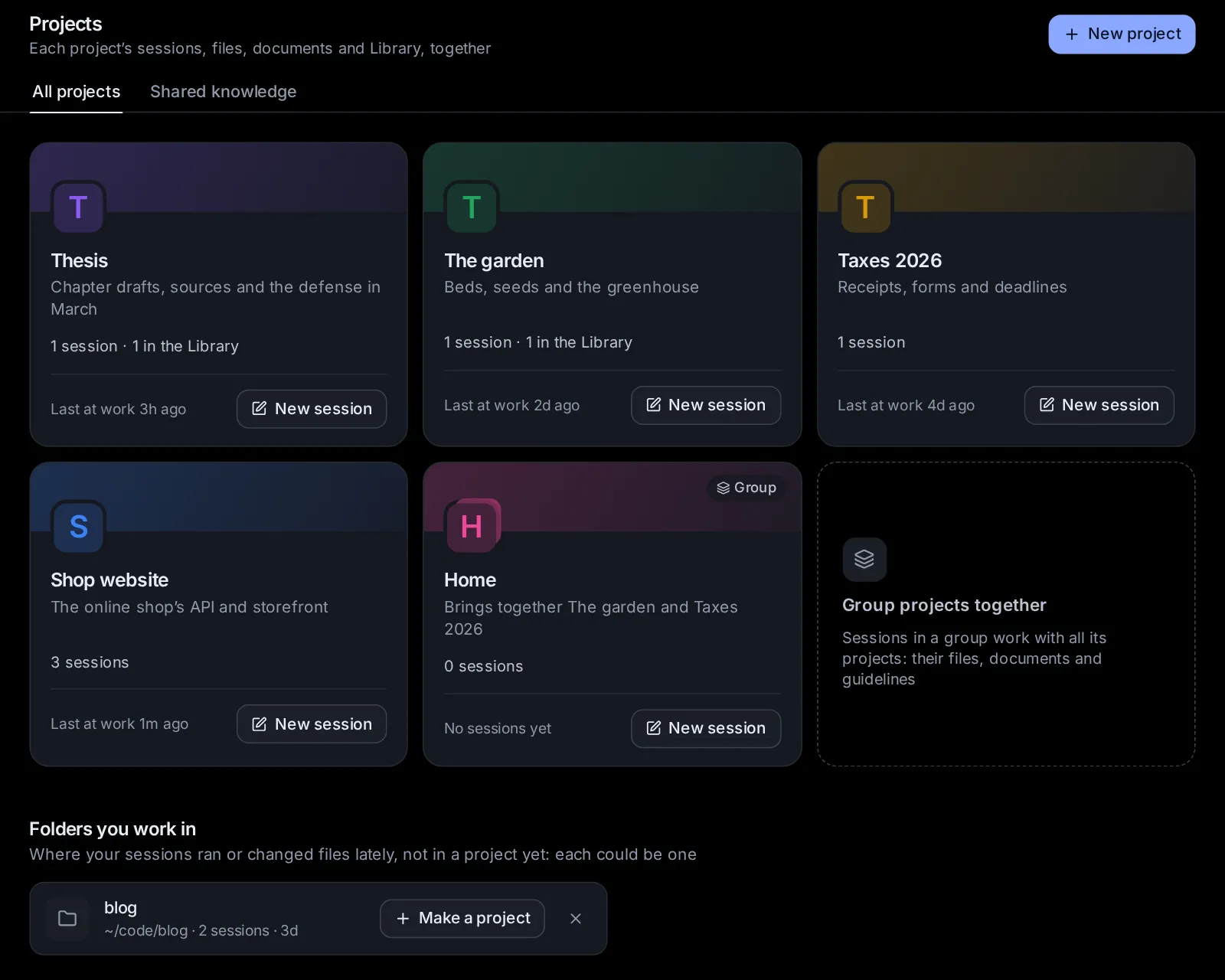
Each project shows as a card:
- a band of its colour with its mark: a rounded square in its colour with the first letter of its name (a group's mark has a second square behind it, and Group on its band);
- its name, and under it what it is about, or its folder when it has no description. A group says "Brings together" and the names of its projects;
- what it holds: how many sessions, how many things in the Library, documents and skills;
- how long ago one of its sessions was last at work, and New session, which starts a session in it at once.
Click a card to open the project's own page, or type the project's name in the search box (Ctrl+K) to go straight there. With no projects yet, the page says what a project is for in three short parts, with Make a project.
Under the projects, Folders you work in lists folders your sessions used lately that could become projects (see Folders you work in, not in a project yet).
Make a project#
- On the Projects page, click New project. The start page's folder menu has New project too (see Start a session in a project).
- Fill in the window:
- Name: what you call the project, such as "Taxes 2026", "The garden" or "Thesis". Up to 60 characters. It is the only field you must fill in. The square beside it is the project's mark, in the colour it will get: click it to pick another of the eight colours (amber, blue, green, pink, violet, teal, orange, slate). If you pick none, projects take the colours in turn.
- Where its files go: pick one of two.
- In a new folder (the usual choice): the app makes the project a folder of its own, named after it.
- In a folder I already have: a project or a folder of documents on this computer, which stays where it is. Below it, Used lately, in no project yet shows folders your sessions worked in lately as one-tap choices; or click Choose a folder… and find one by name or type its path. Picked with the name still empty, the folder's name becomes the project's. Change picks another.
- Optionally, click More options for the rest (a dot beside it means something there is filled in):
- What it is about: a line shown under the name. Up to 300 characters.
- Agent Guidelines: what every agent in the project should follow, such as who the work is for, how to work and what to keep in mind: "Amounts in EUR. I am self-employed in Greece." Up to 20,000 characters. See Agent Guidelines.
- Other folders it uses: more folders of yours its agents work with, where they are; nothing is copied. Add a folder adds one, up to 12; ✕ leaves one out again.
- Click Make the project, or press Enter in the name field.
A new folder goes in a Projects folder where task folders go: "Taxes 2026" gets ~/Hydor/Projects/taxes-2026, unless you moved task folders elsewhere (see Move task folders). If that name is taken, it adds -2, -3 and so on. Made from the Projects page, the new project's page opens. Made from the start page, the new project is picked for the session you are about to start.
Two more things are set on the project's Settings tab afterwards: the assistant its sessions start as, and the projects it brings together. Its documents go on its Knowledge tab, its skills on its Skills tab, and more folders on its Files tab.
A project for a folder you already have#
In the New project window, pick In a folder I already have under Where its files go, then the folder: the project works in it, and no new folder is made. An agent can do it too: "Make a project called Shop for ~/code/shop". A project's own folder can't be changed once the project is made, but the folders it works with can: see Files.
Folders you work in, not in a project yet#
Under your projects on the Projects page, the app lists up to six folders you could make projects for: folders your sessions worked in over the last 90 days, or changed files in while working somewhere else, that no project has yet. The ones used most, and most recently, come first. A folder inside a project kept in Git counts as the whole project. Each card shows the folder's name, where it is, how many sessions used it and when one last did.
- Make a project opens the New project window with that folder picked and its name filled in.
- ✕ (Not a project) stops suggesting that folder. The folder itself is untouched.
Your home folder, hidden folders, temporary ones and the folders the app makes for itself (task folders, apps' runs, worktrees) are never suggested. Once a project has a folder, as its own or as one of the folders it works with, it leaves the list. The same folders show under Used lately, in no project yet in the New project window.
Start a session in a project#
There are two ways:
- From the project: click New session on its card on the Projects page, or at the top of its own page (on a phone, the pen). The start page opens with the project picked, and with its assistant when it has one.
- From the start page: open the folder chip in the row under the message box. Its menu lists your projects first, then the folder in use and the ones you used last, then New task folder and New project. Until you type, it shows the three projects at work most recently (and the one picked, if it isn't among them). Type part of a name in the field at the top to find any project, or any folder. Each project shows its mark, its name and what it is about.
When you pick a project, the chip shows its mark and name instead of a folder, and the session will work in the project's folder. If the project starts its sessions as an assistant, the Assistant chip changes to it, with any agent, model and permissions that assistant suggests. You can still change any of them before you start. Then type your message and click Start.
The start page remembers the project for your next session, on any device you use. To work outside it again, pick a folder or New task folder in the same menu. If a project you had picked is deleted, the start page keeps its folder but no longer the project.
On a phone, the menu opens as a sheet from the bottom of the screen, titled "Project or folder to work in", and the keyboard waits until you tap the field.
When the project's folder is a Git repository, the end of the menu offers New worktree, as for any folder in a repository: the session then works on a branch of its own, in a separate copy of the repository (see Sessions). Sessions you start by voice in hands-free mode start in the project picked last on the start page (see Documents, images, videos and voice).
A project's own page#
Click a project on the Projects page to open it. The top of its page is in the project's colour: the arrow on the left goes back to all your projects (as on the app's other pages), then come the project's mark and name and what it is about (a group's projects, for a group; its folder, with no description). On the right, New session starts a session in the project (on a phone, the pen), and More (⋯) has:
- Open its folder in Files: the project's folder on the Files page.
- Only its sessions in the sidebar: the session list shows only the sessions started in the project, as the sidebar's own filter does (see Show one project's sessions in the sidebar). Pick it again to see every session.
- Delete the project (see Delete a project).
Below them are six tabs: Overview, Library, Files, Knowledge, Skills and Settings. Library, Knowledge and Skills have a count, except on a phone, where the tabs leave their counts out to fit. Each tab shows at once.
Overview#
The project at a glance, in cards:
- Sessions: the sessions started in the project, the one at work most recently first, each with its agent's icon, its title, what it is doing while it runs (Working, Needs you, Ready; not on a phone) and how long ago it was at work. Click one to open it. With more than six, All shows the rest. With none yet, it says that a new one works in the project's folder, with its guidelines, documents and skills, and has New session.
- In the Library: what the project holds in the Library, the last changed first (see Library). Open in the Library shows them there.
- Every session here (beside them, under them on a phone): what every session in the project gets. Folder (its folder, and how many more it works with: click for the Files tab), Guidelines (the start of its guidelines: click for Settings), Knowledge (how many documents it has), Skills (how many of its own), Starts as (its assistant) and Memory (What agents remember about it, which opens Settings → Memory, where the notes agents kept about the project are listed under its folder).
- The projects it brings together, for a group: each of its projects, with how many sessions it has. Click one to open it.
Library#
Everything the project holds in the Library: the pages, slides, documents, spreadsheets and LaTeX documents agents saved in its sessions, and what you kept there or moved there (see Sort it by project). Each card opens it, and its More (⋯) has what it has in the Library. Open in the Library shows the project's things there, with the Library's search and kinds. With nothing yet, the tab says so, with New page and New slides, made in the project.
Files#
The project's folder, and the other folders it works with, as the Files page shows a folder: open, pick several, drag, upload, and each row's menu. A file opens in a window over the page.
- Over the folder, a chip for each: the project's own folder, by the project's name, and each folder it works with, by its name. Click one to show it.
- Attach a folder adds a folder of yours for the project to work with, where it is: find it by name or type its path. Nothing is copied. Up to 12.
- ✕ on a folder's chip leaves it out of the project; the folder itself stays as it is. The message has Undo.
- Open in Files opens the folder on the Files page.
To add files from elsewhere, use Add to a project on the Files page, in a file's window or on an agent's file cards: a file is copied into the project's folder, a folder joins those it works with (see Add files to a project).
Knowledge#
The project's own documents, which only its sessions search, and whether they search the shared knowledge too. See Give a project documents of its own.
Skills#
Every skill the project's sessions get: its own, your skill library's, and Claude Code's and Codex's own, each with a switch for this project alone. See Give a project skills of its own.
Settings#
Everything about the project itself, in four parts, each with a line on what it is for:
- The project: its Name (beside its mark, in the colour picked), What it is about and Its colour.
- What every agent in it follows: its Agent Guidelines, as when you made it.
- How its sessions start: under Its sessions start as, one choice to tap: The assistant picked on the start page (the default: picking the project leaves the start page's assistant as it is), or one of your assistants, built in or your own. Picking the project on the start page then picks that assistant too.
- The projects it brings together: pick projects here to turn this project into a group (see Bring projects together in a group).
Once you change something, a bar says Unsaved changes, with Undo changes and Save; it stays in view while you scroll. At the bottom, Delete the project says what stays, with its button.
Give a project skills of its own#
Skills are written methods that agents load when a task calls for them (see Skills). Your skill library reaches every session; a project can also have skills of its own, which only its sessions get: how its work is done, step by step. "Cite in APA 7 and check every DOI" for a thesis, say, or "ingredients in grams, then numbered steps" for a family cookbook. It can also turn any skill on or off for its own sessions. Both are on the project's Skills tab.
The tab lists every skill the project's sessions get, in groups as on Settings → Skills, with a search box, New skill, the ⋯ menu, and filters: All, Its own, Built in, Yours, From plugins, Claude Code and Codex and Changed here. The project's own skills come first, under Its own; with none yet, that group says what they are for, with New skill.
New skill opens a window with three fields, then Add the skill:
- Name: lowercase words with dashes, such as
citation-style. Spaces and capitals turn into that when you leave the field. Agents know the skill by this name. - When to use it: one line, such as "Use when citing a source in the thesis". Agents see it in every session of the project, and read the rest of the skill only when a task fits.
- The skill: the steps in order, the checks and the mistakes to avoid, in Markdown.
To change a skill of your library for this project alone, open it on the tab and click Change for this project: it is copied into the project with its other files (examples, scripts), and the window to change it opens. The library's stays as it is for every other session.
A skill needs a name of 2 to 64 characters, a line on when to use it of at least 10 characters, and steps of more than a few words; the whole skill holds at most 20,000 characters. A skill that looks like it holds a password, a key or a token is refused: write where the secret is kept instead.
Turn a skill on or off for this project#
Every skill on the tab has a switch at the end of its row: your library's (built in, yours and your plugins'), the project's own, and Claude Code's and Codex's own. A switch here is for this project's sessions alone; the switches on Settings → Skills are for every other session.
- A skill switched the other way from Settings says On here or Off here, and the filter Changed here shows only those. A skill turned off in Settings shows as Off: switch it on to have it in this project alone.
- In its window, a skill switched here says what Settings has for every other session, and Follow Settings goes back to that. Switching it back by hand does the same.
- In the ⋯ menu, Reset every switch here puts every skill back to what Settings says, after you confirm, and Skills for every project opens Settings → Skills.
A new session in the project gets the switches as they are when it starts; one already going keeps what it started with, though Custom follows a change from its next turn. Claude Code's and Codex's own skills are switched for the project's sessions without changing those agents' own settings. In Settings → Skills, a skill a project switches the other way says so on its row ("Off in Thesis").
The list of a project's skills#
Each of the project's own skills shows as a row: its name, when to use it, and how often agents in the project (and in groups that bring it in) used it. A skill with the name of one in your skill library has the badge In place of the library's: the project's sessions get it instead of the library's.
- Click it to read the skill and its History of changes. Change, at the bottom of that window, edits its name, when to use it and its text: a new name keeps its other files, its history and its switch.
- Remove, in the same window, removes it after you confirm. The project's sessions stop seeing it, or go back to the library's skill of that name. Removed skills are listed under the list, after Removed:: click one to bring it back as it was.
In a group, the own skills of each project it brings together follow, under that project's name: the group's sessions get them too. Change them on that project's page. Claude Code's and Codex's own skills are listed for the project's folder: yours, and those in that folder (Claude Code's in its .claude/skills).
How agents get them#
Every Claude Code, Codex and Custom session started in the project gets its skills together with your skill library, as the project switches them: Claude Code in the same plugin named "hydor" (hydor:citation-style), Codex in the same extra folder of skills, Custom in its list of skills. The agent is also told which skills are the project's own, and to use one when it fits the task. Custom has a skill you add or change from its next turn; Claude Code and Codex from their next session.
The skills are kept in the app's data folder, not in the project's folder, so your files stay as they are. A group's sessions also get the skills of the projects it brings together (see What sessions in a group get).
Skills agents propose in a project#
After a task that took real effort, an agent can propose keeping its method as a skill, or improving one it followed, and you approve, edit or dismiss it (see Approve, edit or dismiss a proposed skill). When the session is in a project, the card asks where to keep it, under Keep it for:
- Every session: in your skill library, as outside a project;
- the project's name: in the project's skills alone. For an improvement to a library skill, the project gets its own version with the change, and the library's stays as it was.
The agent suggests one of the two; you choose before you approve. An improvement to one of the project's own skills has no choice: it stays the project's.
Change a project#
Open the project, go to its Settings tab, change what you like and click Save. Sessions you start in the project from then on get the new name, description and guidelines. A new assistant applies the next time you pick the project on the start page, or click New session on its page. The project's folder stays the same: it can't be moved to another folder.
Delete a project#
- Open the project, and click More (⋯) at its top, or go to its Settings tab.
- Click Delete the project.
- The app asks "Delete the name project?" Click Delete.
Deleting a project keeps everything that was in it:
- Its folder and the files in it stay where they are, and so do the folders it worked with.
- Its sessions stay, and no longer belong to a project.
- What it holds in the Library stays there, in no project.
- Its documents move to the shared knowledge, so every session can search them from then on. To keep them apart, move their knowledge base into another project (see Rename, move, read again or delete a knowledge base).
- Its skills move to your skill library, so every session gets them from then on. One with the name of a skill the library has already takes the project's name after its own: the Thesis project's
researchbecomesresearch-thesis. - What agents remember about its folder stays: notes belong to the folder, not to the project.
- It leaves any group it was in. A group left with none of its projects becomes a plain project.
Bring projects together in a group#
A group is a project that brings several projects together, for work that spans them: "Everything for the thesis" bringing in "Thesis" and "Reading notes", say. It has everything a project has: a name, a folder of its own, guidelines, documents, skills and an assistant. Its sessions also work with every project it brings together.
What sessions in a group get#
- The projects' folders: Claude Code can work in each of them as in its own folder; other agents are told where each one is. What a session makes goes in the group's own folder, unless you say otherwise.
- The projects' guidelines: after the group's own, each project's name, what it is about, its folder and its guidelines.
- The projects' documents: searched together with the group's own documents and the shared knowledge (unless the group turns the shared knowledge off). The agent is told which project each knowledge base comes from.
- The projects' skills, with the group's own and your skill library. Where two have the same name, the group's own comes first, then that of the project it brought in first.
- Memory comes from the group's own folder. The notes agents kept in each project stay with that project.
Make a group#
- On the Projects page, click Group projects together. This card shows once you have at least two projects that aren't groups.
- In New group of projects, give it a Name, such as "Work" or "Everything for the thesis".
- Under The projects it brings together, tap each project to bring in; tap one again to take it out. Pick at least one.
- Optionally, fill in What it is about and the Agent Guidelines, and pick a colour.
- Click Make the group. Like a project, it gets a folder of its own for what is made in it, and its page opens.
You can also turn an existing project into a group: on its Settings tab, pick projects under The projects it brings together and click Save. Change a group's projects the same way. Take all of them out and it is a plain project again.
A group's Knowledge tab also shows Also the documents of the projects it brings together: each of its projects, with how many documents it has. Click one to open that project's Knowledge tab. Its Skills tab shows Also the skills of the projects it brings together the same way.
Limits#
- A group brings plain projects together, not other groups: groups are one level deep. A project that is in a group can't bring other projects together itself; its Settings tab says which group it is in instead.
- A project can be in several groups.
- A group brings together at most 12 projects. Once 12 are picked, the others can't be tapped.
Show one project's sessions in the sidebar#
The sidebar gives each project a group of its own, under its name and mark, with its newest sessions; the pen at the end of the group's heading starts a new session in the project. See The session list.
To list only one project's sessions:
- In the sidebar, click the filter button at the end of the Search sessions field (Filter and group sessions).
- The menu lists All agents, Claude Code and Codex, then Every project, up to eight of your projects, and Projects, which opens the Projects page. Pick a project.
The session list then shows only the sessions started in that project, by day, and the filter button is coloured while a filter is on. Pick Every project to see every session again. The agent filter works at the same time, to show only one agent's sessions in a project. If the project is deleted, the list shows every session again.
On the project's own page, More (⋯) → Only its sessions in the sidebar does the same, with a check while it is on; pick it again to see every session.
On a phone, open the sidebar (a drawer) first.
Shared knowledge: documents every session can search#
Agents can search documents you add once: contracts, manuals, notes, papers, a whole folder. They find passages by their words or by what they mean, and cite the file and page they read. Documents are kept in knowledge bases: named collections of files you dropped in and folders on this computer.
- Shared knowledge (Projects → Shared knowledge): every session searches it, in a project too unless the project turns that off.
- A project's own knowledge, on its Knowledge tab: only that project's sessions search it, and the sessions of a group that brings the project in.
To open the shared knowledge, click the Shared knowledge tab on the Projects page, or type "shared knowledge" in the search box (Ctrl+K).
Add documents#
With no shared knowledge yet, the page says "Add your documents once" over a large box to drop documents in. Drop files or a folder there, and a knowledge base called "My documents" is made for them. Start with a folder on this computer instead makes an empty "My documents" base, where you then add a folder.
Every knowledge base has its own drop box and its own Add a folder on this computer button. To start another base, click New knowledge base at the top of the page (New on a phone). Separate bases keep things apart, and an agent can search one base by its name, but one is enough to start.
Drop or choose files#
Drag documents or a folder onto a knowledge base's box ("Drop documents or a folder here"), or click choose files, or folder to pick a whole folder. The files are copied into the app's data folder and read as soon as they are in, so later changes to your originals don't reach the base. A small panel shows the upload. If a file of the same name is already in the base, the panel asks whether to Replace it, Skip existing or Cancel.
The files come from the device you are using. On a phone, choose files opens the phone's file picker; picking a whole folder is offered on a computer only.
Add a folder on this computer#
- On a knowledge base, click Add a folder on this computer.
- In the menu that opens ("A folder to read, and keep up to date"), type a folder's name to find it among the folders you used lately and those in your home folder, or type its path, such as
~/Documents/Manuals. Pick it.
The folder is read where it is: nothing is copied. It shows as a chip on the base, and the base keeps up with it. A minute after the app starts, and every hour after that, the app reads what is new or changed in the folder and drops what was deleted. To read it at once, pick Read again now in the base's menu.
"This computer" is the one Hydor runs on, which may not be the device in front of you.
To stop reading a folder, click the × on its chip. Its documents leave the base; the folder and its files are untouched.
What can be read#
- Documents: PDF, Word, Excel, PowerPoint, OpenDocument, EPUB, CSV and RTF; old .doc, .xls and .ppt files too when LibreOffice is installed on this computer.
- Text: plain text and Markdown, web pages (their text, without the markup), and code and data files such as JSON, YAML, Python or JavaScript.
Left out: pictures; files and folders whose names start with a dot (hidden ones); and the folders tools make, such as node_modules, .git, dist, build, target and venv. A folder is read up to 20,000 files and 12 levels deep. Text files over 4 MB and documents over 300 MB aren't read. A scanned PDF without a text layer has no text to search.
Each document is cut into passages of up to about 1,400 characters, each keeping the page, slide, sheet or heading it came from, so agents can cite it.
See what a knowledge base holds#
Each knowledge base is a card. Under its name, a line counts what it holds: its documents and passages, how much of it is ready to search by meaning (when that is on: "ready to search by meaning", or a percentage while it gets ready), and how long ago it was last read. While it is being read, the line starts "Reading 12 of 40…".
- Show the documents lists every document: its name or path, then how many passages it has and its size. no text marks a document with nothing to read in it, and could not read one that failed; point at it to see why. Click a document to open it. Hide the documents folds the list.
- When some documents couldn't be read, a red line says how many, with the first few and the reason for each.
- A file you dropped in can be removed with the × at the end of its row (on a computer, it shows when you point at the row). This deletes the base's copy. A document from a folder on this computer has no ×: remove it from the folder itself, or stop reading the folder.
Rename, move, read again or delete a knowledge base#
The ⋯ button (More) at the top right of a knowledge base opens its menu:
- Read again now: reads its files and folders again at once, for files just added or a folder that changed.
- Rename: opens Rename the knowledge base. Type the new name (up to 60 characters) and click Save.
- Move to: Shared knowledge, or one of your projects; a check marks where the base is now. In a project, only that project's sessions search it; in the shared knowledge, every session does. This item shows once you have projects.
- Delete: asks "Delete name?" Its passages go, and the files dropped into it with them; folders on this computer stay as they are. Click Delete to go ahead.
Give a project documents of its own#
Open the project and go to its Knowledge tab.
- Also search the shared knowledge is a switch, on unless you turn it off. Turn it off and the project's sessions search only the project's own documents (and, in a group, those of its projects). The line under it says how many shared documents there are, with a Shared knowledge link.
- With no documents yet, drop documents or a folder in the box, or choose them: a knowledge base named after the project is made for them. Start with a folder on this computer instead makes an empty one, named after the project, to add a folder to.
- Once it has documents, the tab shows a search box (see Try a search yourself), the project's knowledge bases with the same cards and menus as shared ones, and New knowledge base at the bottom.
A shared knowledge base can be moved into a project from its menu (Move to), and back.
How agents search your documents#
Once there is at least one knowledge base, agents get tools to search the documents their session may search, to read more of a document around a passage, and to list what the knowledge bases hold. Claude Code, Codex, Custom and the agents that speak ACP and take MCP servers (tool servers) all get them.
At the start of a session, the agent is told which knowledge bases it can search and how many documents each holds; in a project, also whether each is the project's own, shared, or from a project its group brings in. It is told to search there first, before the web or memory, when a question may be answered from them; to answer from what the passages say; to cite each passage it uses with its file and page or part, and its path; and to say so when the documents don't answer the question.
In the conversation, a search shows as a step: Searched your documents, what it looked for, and how many passages it found, or "nothing found". Click it to see the passages, each with its file, page and knowledge base. Click a passage to open the file.
By words, by meaning, or the exact text#
Agents search in three ways:
- By words: passages that hold the words of the question, the best matches first. Always available.
- By meaning: passages that mean what the question asks, even in other words or another language. This needs Search by meaning, turned on in Settings → Memory. It runs on this computer, and once it is on, every base gets ready for it in the background (see Memory). While it is off, the Shared knowledge tab and each project's Knowledge tab say where to turn it on, and agents find passages by their words.
- The exact text: a phrase in quotes ("notice period") or a pattern between slashes (a regular expression, such as
/INV-\d+/), found as the grep command would find it: for names, numbers and codes. These passages come in the order they appear in the documents.
An agent searches by words and by meaning together unless it asks for one, and a question in quotes or between slashes is searched for exactly. It gets 8 passages at a time unless it asks for more (up to 25), and it can search one knowledge base by its name.
Try a search yourself#
Above the knowledge bases, a field says "Try a search, as agents do: a question, or “exact words” in quotes". Type and press Enter. Up to 10 passages come back, each with its file and page, its knowledge base and how it was found: by words, by meaning, or both, or by exact for exact text. Click one to open the file.
On the Shared knowledge tab, it searches what a session outside any project searches. On a project's Knowledge tab, it searches what a session in that project searches.
Which sessions search which knowledge#
| A session… | searches |
|---|---|
| outside any project | the shared knowledge |
| in a project | the project's own documents, and the shared knowledge unless the project turns it off |
| in a group | the group's own documents, the documents of every project it brings together, and the shared knowledge unless the group turns it off |
| started by another session (a child session) | what the session that started it searches |
The knowledge tools never bring up another project's documents, not even when an agent asks for a file by its path. A knowledge base whose project was deleted is shared.
Ask an agent#
- "Make a project called Taxes 2026 for my receipts and tax return. Its sessions should start as the Researcher, and every agent in it should know that amounts are in EUR."
- "Make a project called Shop for my code in ~/code/shop."
- "What does my Thesis project hold in the Library? Move the reading tracker into it."
- "Which folders have I been working in that aren't in a project yet? Make projects for the two I use most."
- "Copy ~/Downloads/contract.pdf into my Taxes 2026 project, and have it work with ~/Documents/Receipts too."
- "Group my Thesis and Reading notes projects into one called Everything for the thesis."
- "Give my Thesis project a skill: cite in APA 7, and check that every DOI resolves before I hand a chapter in."
- "Copy the writing skill into my Garden project, and change it there to use plain words for children."
- "In my Shop website project, turn the docker skill on and Claude Code's deploy skill off, for that project only."
- "Add the folder ~/Documents/Manuals to my shared knowledge."
- "Move the Contracts knowledge base into the Taxes 2026 project, and stop that project from searching the shared knowledge."
- "Which knowledge bases do I have, and which documents couldn't be read?"
Change this page on GitHub · the app's Help shows the same text